System requirements
TypeNext is a native macOS app that requires macOS 14 or later. It lives in your menu bar, not the Dock.
Download and install
- Go to typenext.app and download TypeNext.
- Open the downloaded .zip file.
- Drag TypeNext into your Applications folder.
- Open TypeNext from Applications.
First launch: setup wizard
The first time you open TypeNext, a setup wizard guides you through a few steps:
- Welcome — a quick intro to what TypeNext does.
- Text completion demo — see how suggestions work in real time.
- Permissions — grant Microphone and Accessibility access so TypeNext can work with your apps and hear your voice.
- Optional features — turn on or skip style, emoji, snippets, and read-aloud if you want them now (you can adjust these later in Settings).
- AI model — TypeNext enables automatic routing and can download a local model in the background for offline and low-latency routes.
TypeNext has no Dock icon — it lives in the menu bar. If you ever lose track of it, open it again from your Applications folder.
Finding TypeNext after setup
Once setup is done, TypeNext lives in your menu bar at the top right of your screen. Look for a small sparkles icon.
- Left-click the icon to open a popover showing TypeNext's status, quick toggles (like pausing suggestions), and a Settings button.
- Right-click the icon for a short menu with Open Settings, Pause, and Quit.
Open a TypeNext window
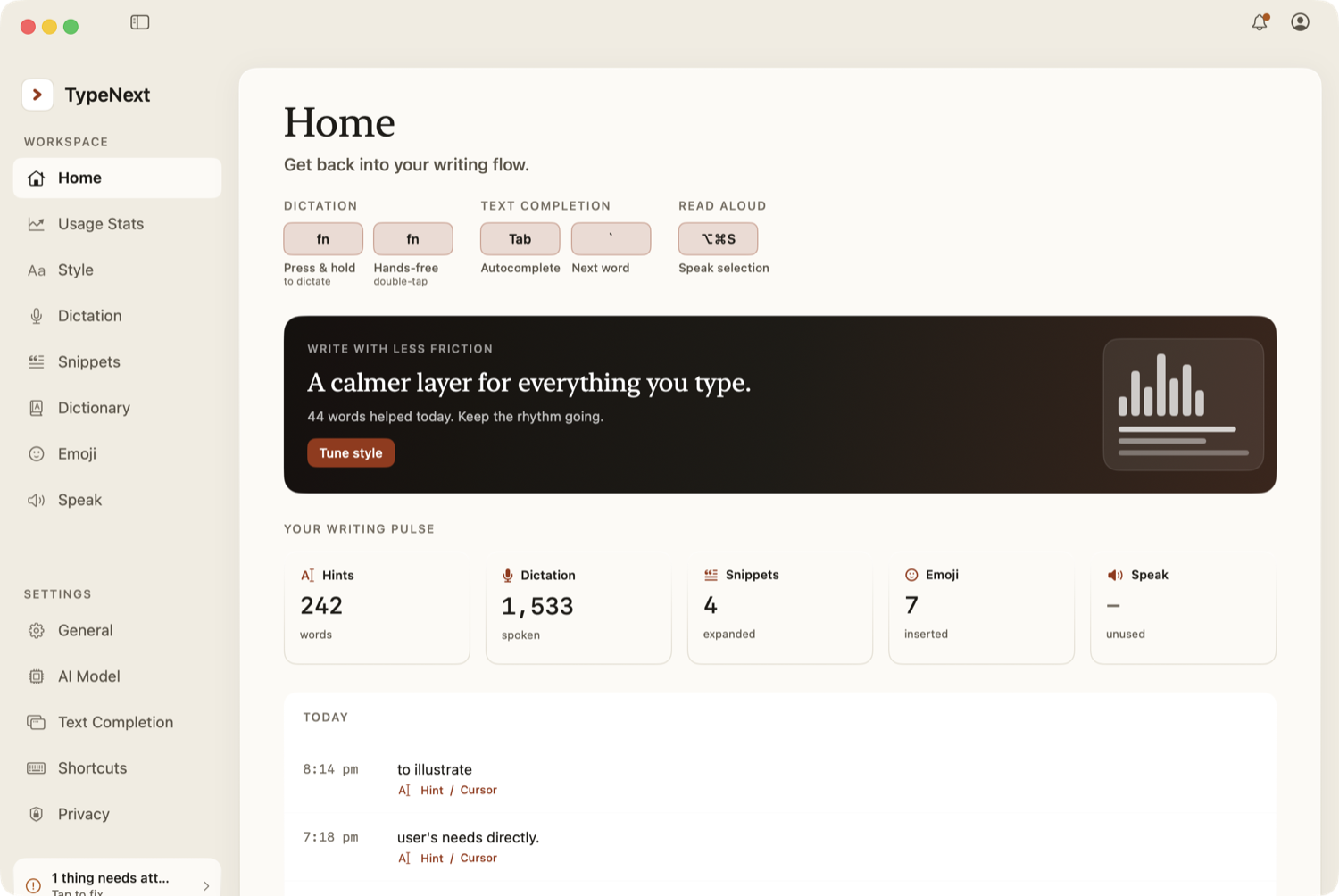
When you open any TypeNext window, a full menu bar appears at the top with these menus: TypeNext, Dictation, Tools, Library, and Help. Use these to access settings, start dictation, manage your snippets and templates, and find help.
Settings
Open Settings any time by:
- Clicking the Settings button in the menu-bar popover, or
- Pressing ⌘, while a TypeNext window is open.
Dictation
Once dictation is turned on, a small floating voice bar appears at the bottom of your screen. For details on how to use it, see the Dictation guide.