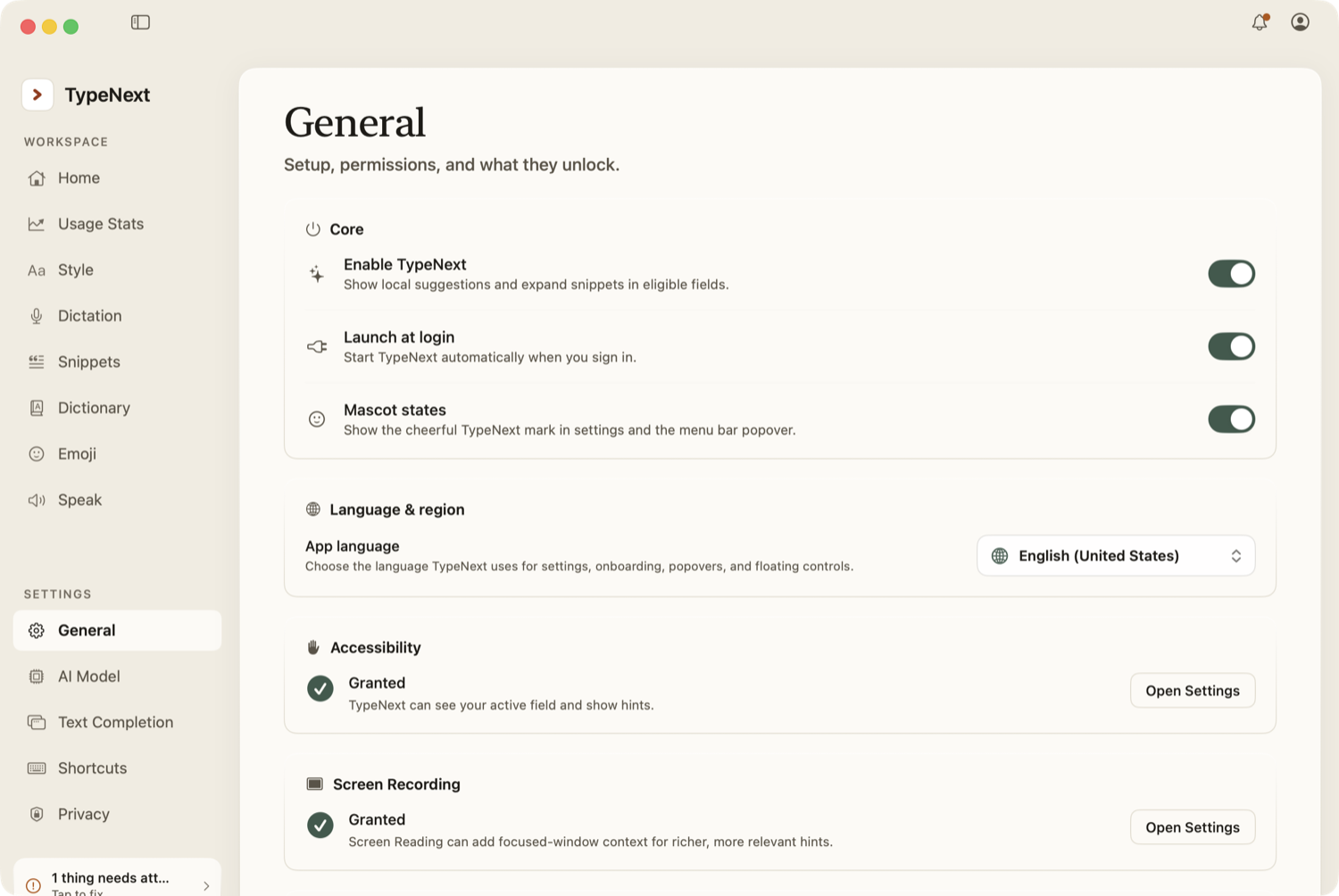
Accessibility (required)
This lets TypeNext see the text field you are typing in, insert suggestions and dictated text at the cursor, and handle its keyboard shortcuts. macOS never lets it read secure fields such as passwords.
Grant it in System Settings → Privacy & Security → Accessibility by enabling TypeNext. It is requested during setup.
Microphone (for dictation)
This permission is requested the first time you dictate. Grant it in System Settings → Privacy & Security → Microphone.
If microphone access was denied, TypeNext opens the right System Settings pane for you when you try to dictate again.
Screen Recording (optional)
This is only needed if you turn on screen reading for an app, which lets TypeNext read on-screen text locally to ground suggestions in chat and email.
Grant it in System Settings → Privacy & Security → Screen Recording. macOS requires a relaunch after enabling it. Without this permission, those apps fall back to ordinary context.
Check the status of all permissions anytime in Settings → General.