What are snippets?
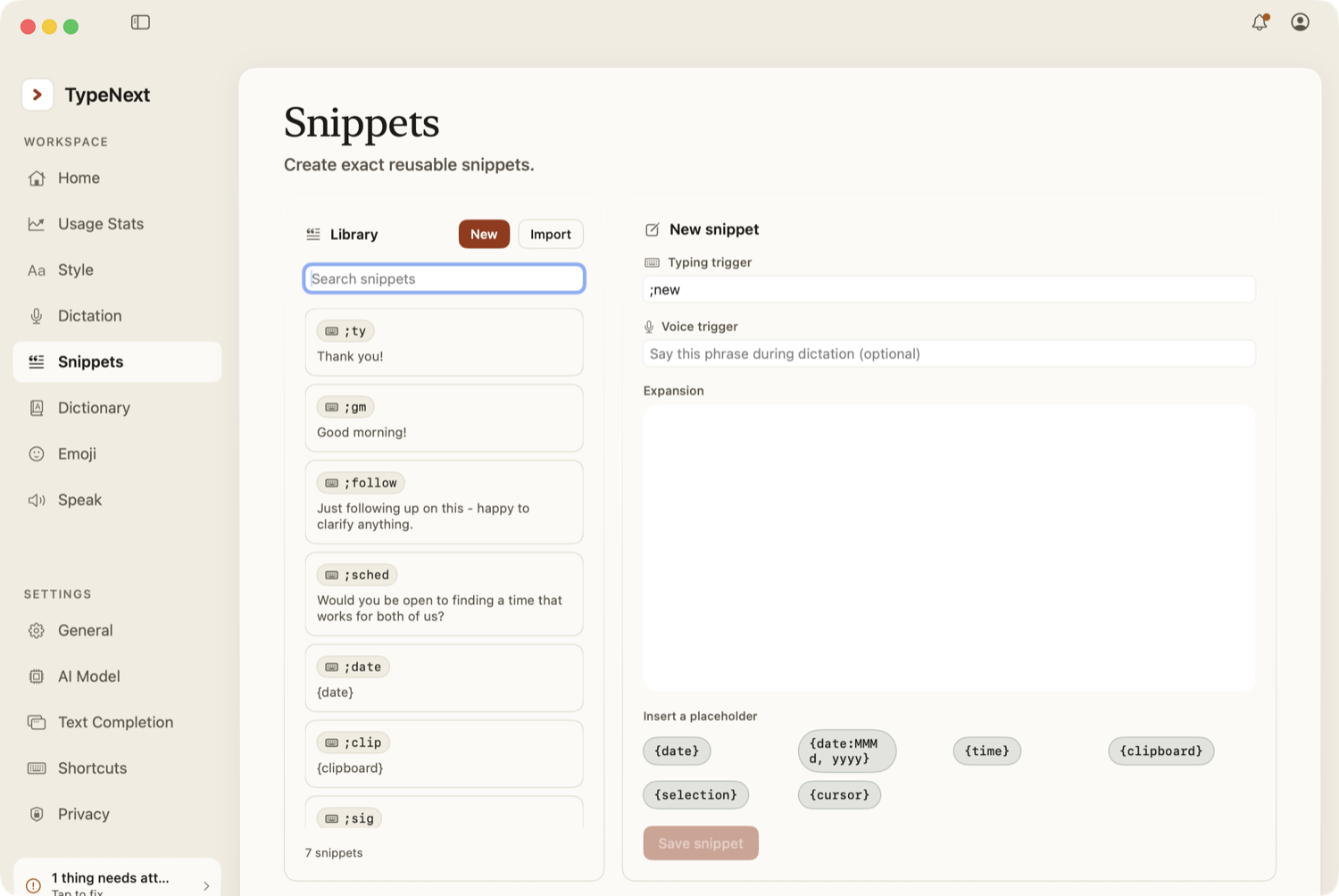
A snippet is a short trigger that expands into longer text. You can use a typing trigger, a voice trigger, or both. TypeNext ships with a few starter snippets like ;ty for "Thank you!" so you can see how they work.
Typing triggers
A typing trigger is a prefix character (default: semicolon) followed by a word. For example, ;ty expands to "Thank you!" as soon as you type it, as long as it follows a space or comes at the start of the field.
You can change the prefix character in Settings → General.
Voice triggers
A voice trigger is a spoken phrase that expands while you dictate. Say "my email" and TypeNext inserts your address. Voice triggers work alongside typing triggers in the same snippet.
Create a snippet
- Open Settings → Snippets.
- Click New.
- Fill in a typing trigger, a voice trigger, or both.
- Enter the text to insert.
- Add an optional category to organize your snippets.
- Click Save.
Placeholders
You can embed these placeholders in your snippet text. TypeNext will replace them when you insert the snippet:
{date}— today's date.{time}— the current time.{clipboard}— the text in your clipboard.{selection}— the text you had selected when you invoked the snippet.{cursor}— where the cursor lands after the snippet inserts.{date:format}— a date in a custom format (the editor shows quick-insert buttons for this).
The snippet editor has quick-insert buttons for each placeholder, so you don't have to type them by hand.