Writing Mode
Turn on Writing Mode in your document apps — editors, email, notes — to get suggestions back in around 200 ms instead of the usual speed. TypeNext reads your document up to the cursor through Accessibility and reuses the prompt across keystrokes, so there's less waiting between characters.
The quality is the same as normal completion, and Writing Mode doesn't capture your screen. It's purely a faster path for typed text.
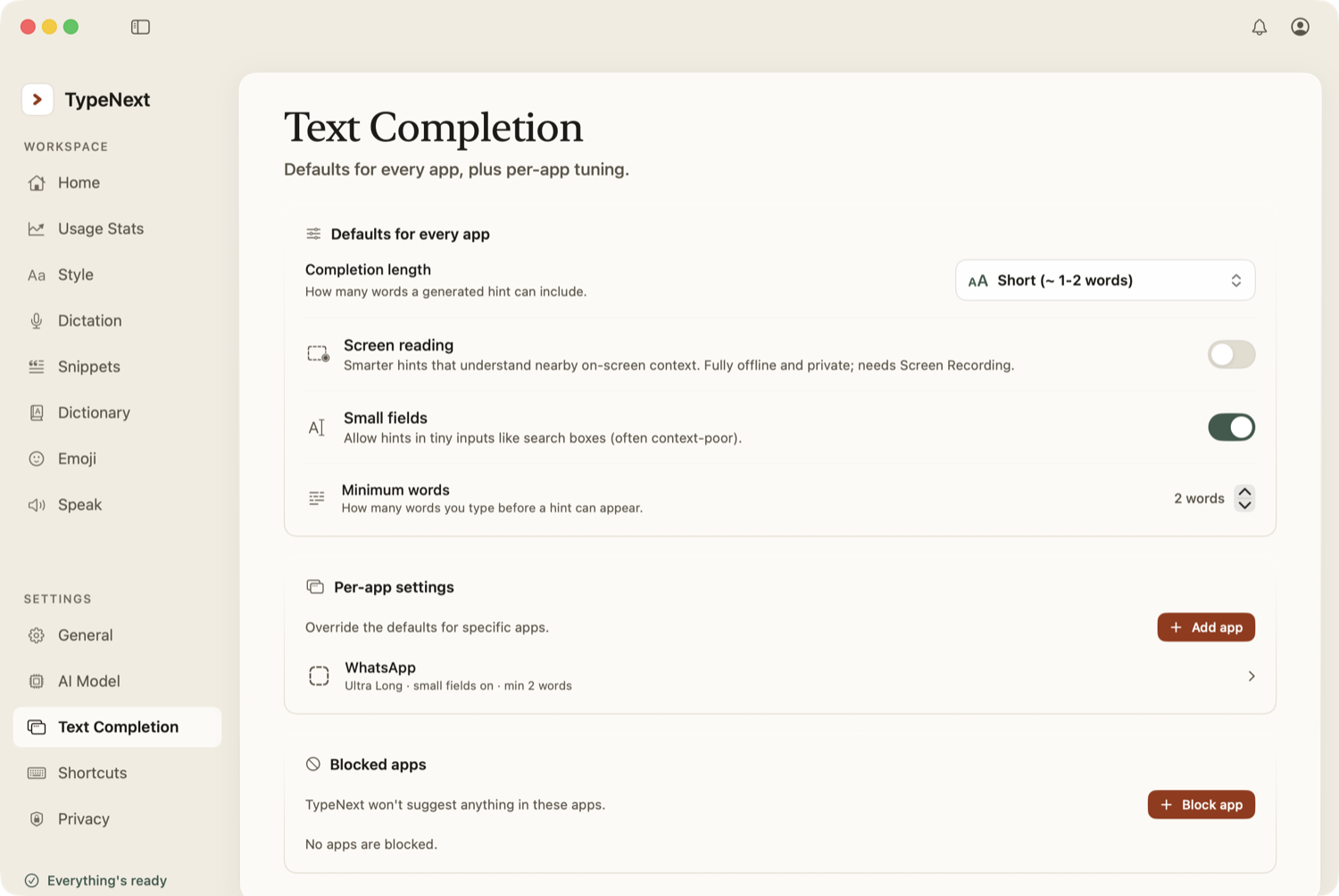
Enable it in Settings → Text Completion → Add Writing Mode apps. Each app gets a "Writing Mode" badge in the list. You can toggle it per app anytime.
Screen reading for context
Screen reading grounds suggestions in what's actually visible on screen. TypeNext reads the text in your window locally using macOS Vision — once per field, not continuously.
It works best in:
- Chat apps — iMessage, WhatsApp, Slack, Discord, Telegram, and similar. TypeNext attributes messages to who sent them, so a reply goes to the right person.
- Email — suggestions see the thread you're replying to.
- Comment threads — suggestions know what you're responding to.
Turn it on in Settings → Text Completion by setting Screen reading to On. You'll need to grant Screen Recording permission. You can set it globally or override it for a specific app.
Do you need both?
No. A Writing Mode app already reads your document, so screen reading is redundant there — and it's automatically off. Use Writing Mode for document editors and email where speed matters, and use screen reading in chat and threaded apps where context matters.
Both are optional tweaks set in Settings → Text Completion. Standard completion works everywhere without either one.