While it reads
0:12
Speak selected text
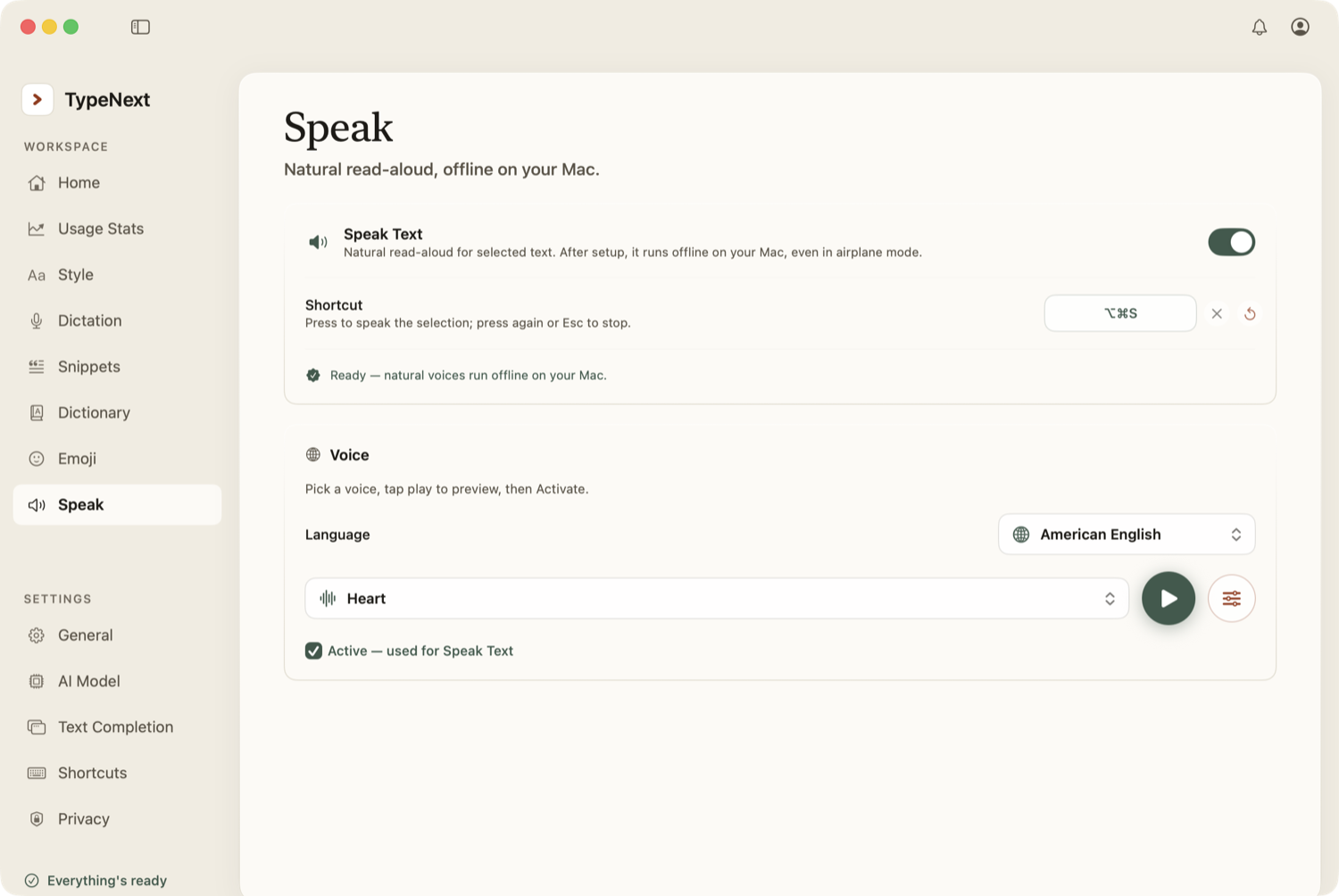
Select any text in an app, then press ⌥⌘S. TypeNext reads it aloud. You can also right-click the selected text and choose Services → Speak Text.
Control playback
- Pause and resume. Press ⌥⌘S again while it's reading.
- Stop. Press Esc to stop and close the floating bar.
While speaking, a small floating bar displays a waveform so you can see the playback in progress.
Pick a voice and adjust it
Go to Settings → Speak to choose a voice and fine-tune it:
- Voice — select from many options in American and British English, Spanish, French, Hindi, Italian, Portuguese, and Chinese. Default is a US English voice.
- Speed — slow down or speed up the reading.
- Pitch — raise or lower the voice pitch.
- Volume — adjust how loud the voice plays.
How it works
All voices run entirely on your Mac using the Kokoro engine — no internet needed and no data sent anywhere. Read aloud is off by default; turn it on in Settings → Speak.
Read aloud does not work in secure fields such as password inputs.